Image overlays
Image overlays let you burn static images — such as logos or watermarks — directly into your transcoded stream. Overlays are configured per engine and rendered on top of the video at the specified position and opacity.
Dashboard
You can configure overlays directly from the dashboard by editing an engine and opening the Overlays dialog. For each overlay, provide the image URL, choose a position preset (e.g. Top Left, Bottom Right), and optionally adjust the opacity and dimensions.
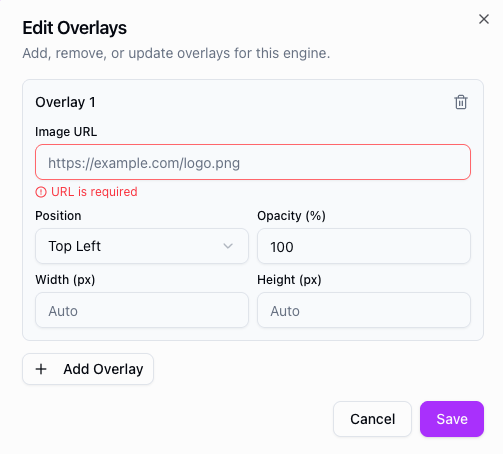
Use + Add Overlay to add multiple overlays to the same engine. Click Save to apply your changes.
Configuration
Each engine supports one or more overlays. An overlay is defined by:
| Property | Type | Required | Description |
|---|---|---|---|
url | string | Yes | URL of the overlay image. |
position | object | No | Where to place the overlay on the video frame. If omitted, the image is placed at the top-left corner (0, 0). |
opacity | number | No | Overlay opacity, from 0 (invisible) to 1 (fully visible). Defaults to 1. |
Position
The position object accepts the following properties, all specified in pixels:
| Property | Type | Description |
|---|---|---|
top | number | Distance from the top edge of the video frame. |
bottom | number | Distance from the bottom edge. Ignored if top is set. |
left | number | Distance from the left edge of the video frame. |
right | number | Distance from the right edge. Ignored if left is set. |
Use a combination of one vertical (top or bottom) and one horizontal (left or right) property to anchor the overlay. The pixel values are relative to the ingest resolution (i.e. the width and height of the incoming source stream).
API example
Add a logo overlay in the bottom-right corner when creating or updating an engine:
POST https://api.theo.live/v2/channels/{channelId}/engines
{
  "name": "my-engine",
  "region": "europe-west",
  "quality": {
    "abrLadderId": "your-abr-ladder-id"
  },
  "overlays": [
    {
      "url": "https://example.com/logo.png",
      "position": {
        "bottom": 20,
        "right": 20
      },
      "opacity": 0.8
    }
  ]
}
Notes
- Use PNG images with transparency for clean overlays that blend naturally with the video.
- The overlay is burned into the transcoded output, so it will appear on all quality levels and all output protocols.
- To remove overlays, update the engine with an empty
overlaysarray and restart the engine.