How to Use Schedulers
Schedulers let you automate when your channels go live and stop streaming. Instead of manually starting and stopping channels, you define a schedule and let the system handle it.
What is a Scheduler?
A scheduler is a time-based rule that automatically starts and stops one or more streaming channels. You can create one-time schedules for a single event, or recurring schedules for repeated broadcasts like daily shows or weekly streams.
Each scheduler has a status that reflects where it is in its lifecycle:
| Status | Meaning |
|---|---|
| Idle | Waiting for the next scheduled run or a manual start. |
| Starting | The connected channels are being brought online. |
| Active | The connected channels are live. |
| Stopping | The connected channels are being taken offline. |
| Terminated | The schedule has completed and will not run again. |
Creating a Scheduler in the dashboard
- Navigate to Streaming → Schedulers.
- Click the New button in the top right.
- A two-step form opens.
Step 1 — Configure the schedule
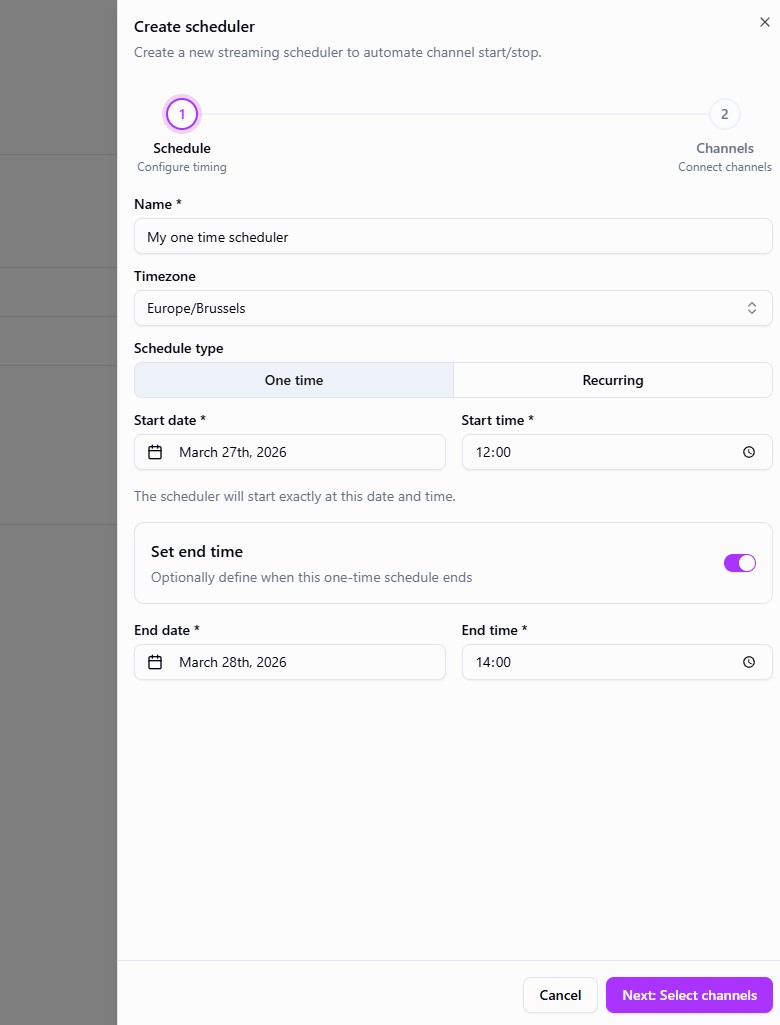
- Name — Give your scheduler a descriptive name (e.g. "Weekday morning show").
- Timezone — Select the timezone the schedule should operate in. Start searching to filter the list.
- Schedule type — Choose between:
- One time — The scheduler fires once at the specified date and time.
- Recurring — The scheduler repeats according to a pattern you define.
One-time schedule
- Set the start date and start time. This is when your channels will go live.
- Optionally enable Set end time and provide an end date and time. If set, your channels will be automatically stopped at that point.
Recurring schedule
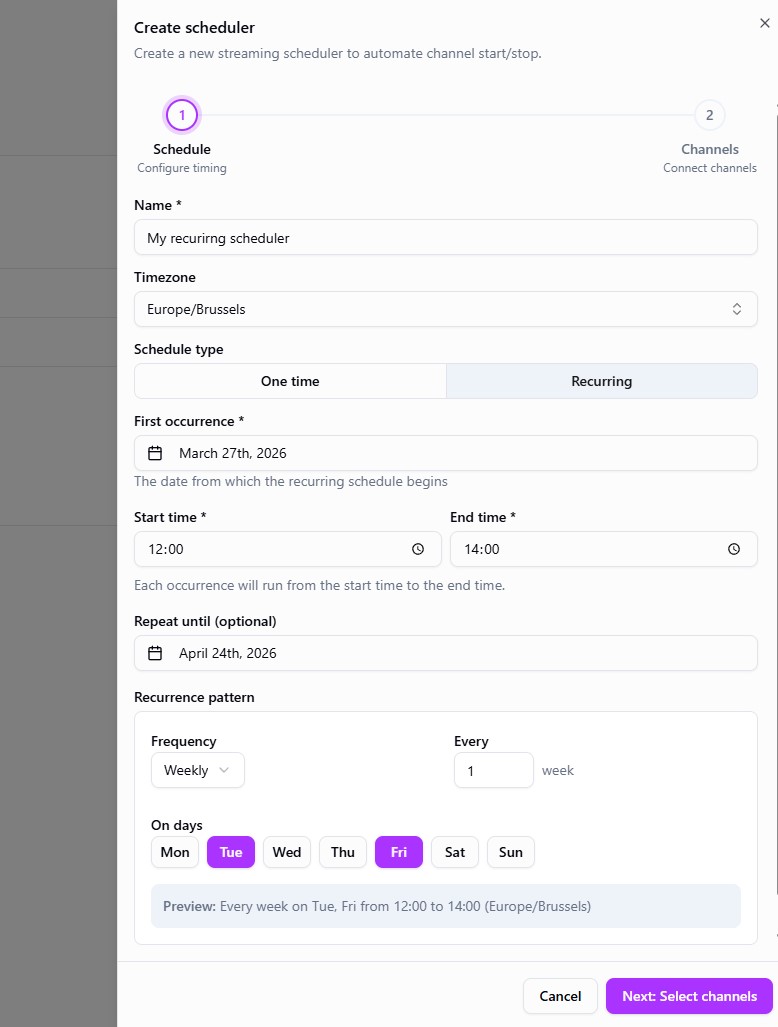
- Set the first occurrence date — the date from which the recurring schedule begins.
- Set the start time and end time — each occurrence will run between these times.
- Optionally set a Repeat until date. If left empty, the schedule repeats indefinitely.
- Configure the recurrence pattern:
- Frequency — Daily, Weekly, or Monthly.
- Interval — e.g. every 1 week, every 2 days.
- Days of the week — (Weekly only) Select which days the schedule should run on.
- A live preview shows a summary of the pattern, e.g. "Every week on Mon, Wed, Fri from 08:00 to 12:00 (Europe/Brussels)".
When using the API, recurrence is expressed as an RRULE string in the recurrence field. Examples:
| Pattern | RRULE |
|---|---|
| Every day | RRULE:FREQ=DAILY |
| Every 2 days | RRULE:FREQ=DAILY;INTERVAL=2 |
| Every week on Monday, Wednesday, Friday | RRULE:FREQ=WEEKLY;BYDAY=MO,WE,FR |
| Every 2 weeks on Tuesday and Thursday | RRULE:FREQ=WEEKLY;INTERVAL=2;BYDAY=TU,TH |
| Every month | RRULE:FREQ=MONTHLY |
| Every 3 months | RRULE:FREQ=MONTHLY;INTERVAL=3 |
| Every week on Saturday | RRULE:FREQ=WEEKLY;BYDAY=SA |
Step 2 — Select channels
- Search and browse your streaming channels.
- Click a channel row to select or deselect it. At least one channel is required.
Click Create to save the scheduler.
API example — Create a scheduler
One-time schedule:
POST https://api.theo.live/v2/schedulers
{
  "name": "Product launch stream",
  "startDate": "2026-04-15",
  "startTime": "14:00",
  "endDate": "2026-04-15",
  "endTime": "16:00",
  "timeZone": "Europe/Brussels",
  "channelIds": ["ch_abc123", "ch_def456"],
  "enabled": true
}
Recurring schedule:
POST https://api.theo.live/v2/schedulers
{
  "name": "Weekday morning show",
  "startDate": "2026-04-01",
  "startTime": "08:00",
  "endTime": "12:00",
  "timeZone": "Europe/Brussels",
  "recurrence": "RRULE:FREQ=WEEKLY;BYDAY=MO,WE,FR",
  "channelIds": ["ch_abc123"],
  "enabled": true
}
Viewing Schedulers
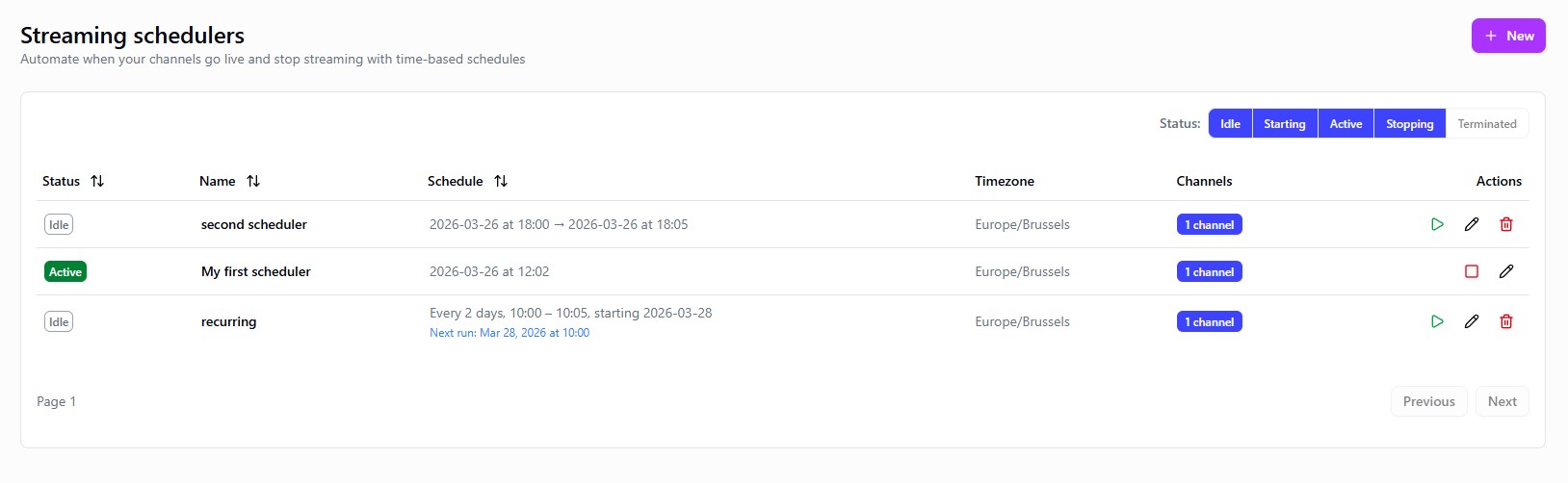
The Schedulers page shows a table of all your schedulers with:
- Status — Current lifecycle state. Disabled schedulers show a yellow "Disabled" badge.
- Name — The scheduler name.
- Schedule — A human-readable summary of the schedule. For idle recurring schedulers, a "Next run" date is shown below the summary.
- Timezone — The timezone the schedule operates in.
- Channels — A badge showing the number of connected channels. Click it to see the full list and navigate to individual channels.
API example — List all schedulers
GET https://api.theo.live/v2/schedulers
Optional query parameters:
| Parameter | Description |
|---|---|
cursor | Pagination cursor for the next page |
limit | Number of results per page |
status | Comma-separated filter, e.g. idle,active |
sortBy | Sort field: status, name, startDate, or startTime |
sortDirection | asc or desc |
API example — Get a single scheduler
GET https://api.theo.live/v2/schedulers/{schedulerId}
Editing a Scheduler
Any non-terminated scheduler can be edited.
-
For idle or stopped schedulers, you can change all fields including the schedule timing, channels, and recurrence pattern.
-
For active schedulers, some fields are locked and cannot be changed while channels are live:
- Start date and start time
- Schedule type (one-time vs. recurring)
- Timezone
- Connected channels
You can still change the scheduler name, end time, and recurrence pattern.
Click Save changes to apply your edits.
API example — Update a scheduler
All fields are optional; only include the fields you want to change.
PATCH https://api.theo.live/v2/schedulers/{schedulerId}
{
  "name": "Updated scheduler name",
  "endDate": "2026-06-30",
  "endTime": "18:00"
}
Enabling and Disabling a Scheduler
When editing a scheduler, you can toggle the Scheduler enabled switch.
- Enabled — The scheduler will run according to its configured schedule.
- Disabled — Scheduled runs will be skipped until the scheduler is re-enabled. The scheduler remains in the system and can be re-enabled at any time.
This is useful when you want to temporarily pause a recurring schedule without deleting it.
API example — Enable or disable a scheduler
Use the update endpoint with the enabled field:
PATCH https://api.theo.live/v2/schedulers/{schedulerId}
{ "enabled": false }
Manually Starting and Stopping
You can override the schedule at any time:
- Start — Available when a scheduler is idle. Immediately starts the connected channels regardless of the configured schedule.
- Stop — Available when a scheduler is active. Immediately stops the connected channels.
API example — Manually start a scheduler
POST https://api.theo.live/v2/schedulers/{schedulerId}/start
API example — Manually stop a scheduler
POST https://api.theo.live/v2/schedulers/{schedulerId}/stop
Deleting a Scheduler
A confirmation dialog will appear. Deletion of a non-active scheduler can be done at any time and is permanent and cannot be undone.
Note: You cannot delete a scheduler while it is active. Stop it first, then delete.
API example — Delete a scheduler
DELETE https://api.theo.live/v2/schedulers/{schedulerId}
Schedulers on the Channel Detail Page
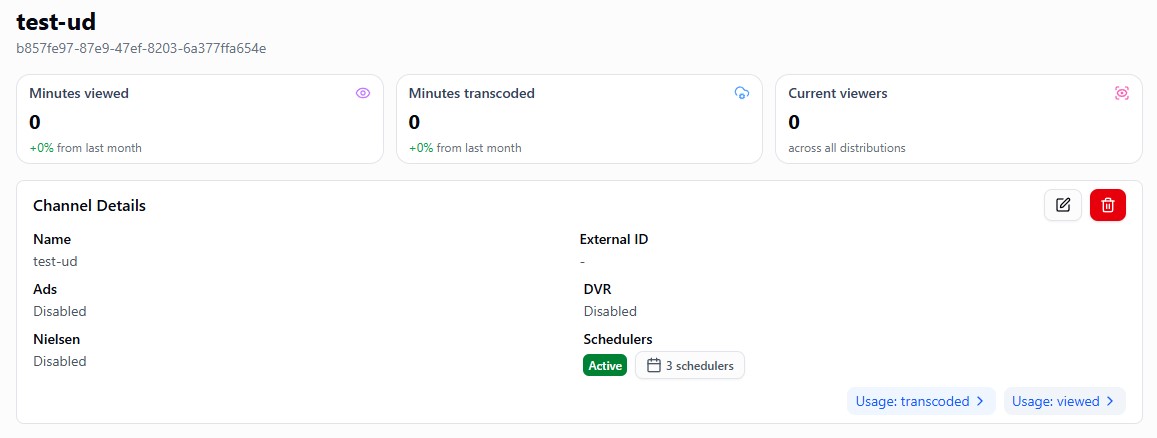
When viewing an individual channel, the Channel Details card shows a Schedulers section:
- If the channel has connected schedulers, a badge shows the count (e.g. "2 schedulers") and an "Active" indicator if any scheduler is currently running.
- Click the badge to open a dialog listing all non-terminated schedulers connected to that channel, along with their schedule summaries and next-run dates.
- Click any scheduler row in the dialog to navigate to the schedulers overview page.
Tips
- Plan your timezone carefully. The scheduler operates in the timezone you select, not your local browser timezone. All start/end times are interpreted in the selected timezone.
- Use recurring schedules for regular events. Rather than creating a new one-time scheduler for each event, set up a recurring schedule once and let it run.
- Disable instead of deleting. If you need to pause a recurring schedule temporarily, disable it rather than deleting and recreating it.
- Check the "Next run" indicator. For idle recurring schedulers, the table shows when the next occurrence will fire, so you can verify the schedule is correct.
- Start dates must be in the future. When creating a new scheduler, the start date and time must be in the future (relative to the selected timezone).