Using vMix with OptiView Live
This guide explains to you how to set up vMix correctly so it can be used to stream your content with OptiView Live.
1. Set up sources
Make sure all your sources are set up and in order. As an example, you could add simple colour bars as a source by left-clicking the up arrow next to Add Input, which you can find at the left bottom of the vMIX screen, and select Colour Bars. Similarly, you could add other input e.g. your webcam by selecting Camera or a stream by selecting Stream/SRT. In order to see these options, you'll have to select More in the Add Input menu.
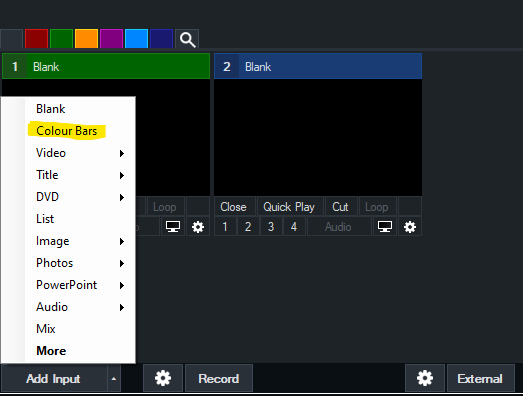
Note: The colour bars input are only an example. You can stream whatever input you like.
If you want to burn in a clock you can follow the steps documented by vMix. You can create a Production clock input and burn it into the colour bars input by configuring Multiview
Production clock documentation
Multiview documentation
2. Configure stream settings
- Left-click the cogwheel next to Stream at the bottom of the vMix screen.
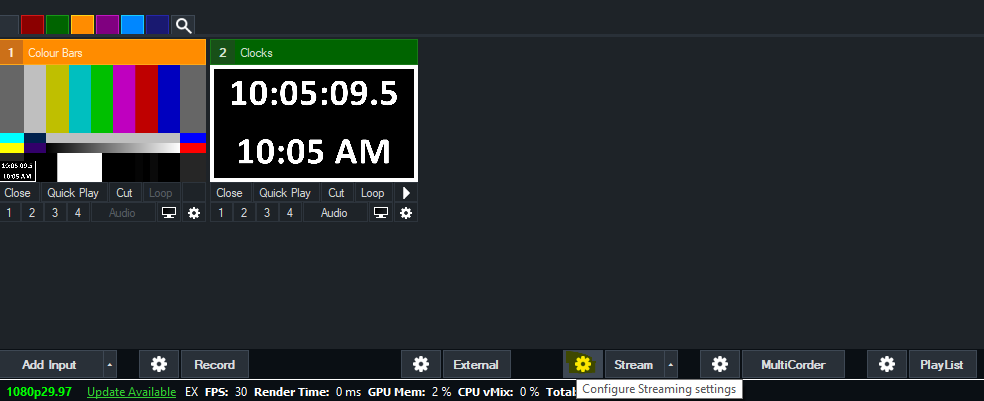
Note: Make sure you set up your settings first before clicking the Stream button.
- In the Streaming Settings select Custom RTMP Server as your destination and enter your RTMP push URL and Streamkey as follows:
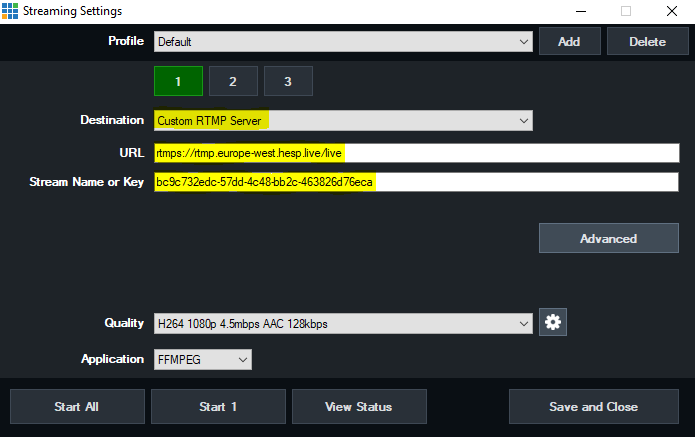
Note: You can find your RTMP push URL and streamkey in the management dashboard.
- Next, choose a set of stream values such as aspect ratio and bitrate from the Quality list and click the cogwheel for advanced Streaming Quality settings.
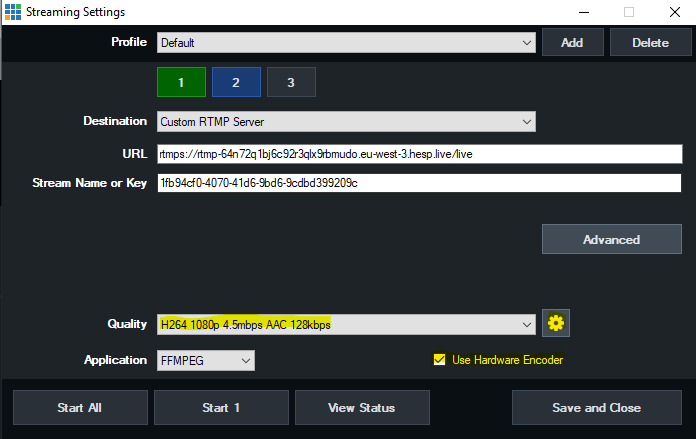
Note: If you have the hardware available: it's always a good idea to enable the Hardware Ecoder setting.
- In the Streaming Quality menu you can make some more advanced changes to your stream settings. Please use the settings that are highlighted in yellow in the following image to achieve optimal performance when streaming to OptiView Live. You are free to change the Video Bit Rates and Encode Size settings depending on your use case.
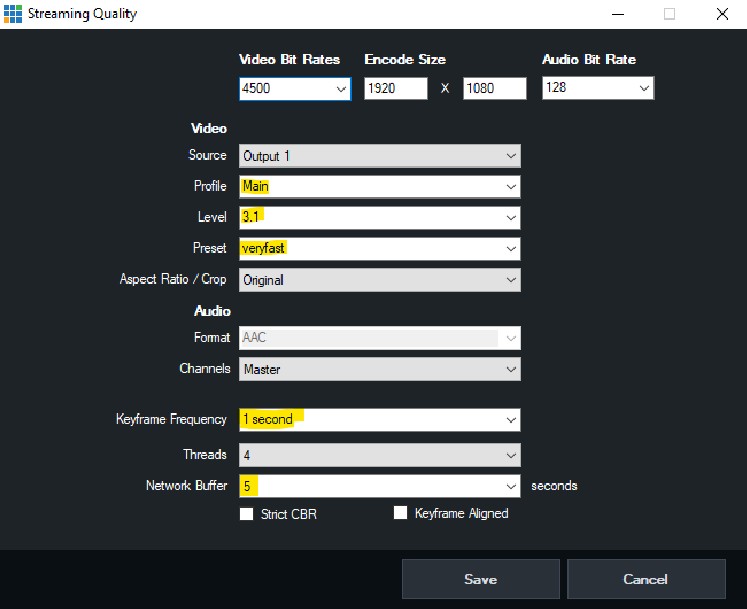
Note:* You are free to experiment with your encoding settings but the values shown in this image reflect the encoding setting used on the server side.
Remember to set the frame rate to the same value as in your channel ingest configuration and make sure that your encoder has a stable connection and enough upload bandwidth. See Stream configuration for more details.
3. Start streaming
You can now save and exit out of all the Streaming Settings menus and click the Stream button to start streaming.
4. Start your channel
Your channel must be started in order to receive video ingest from vMix. You can choose to start up your channel before or after you start streaming via vMix.