This feature is still under development and may be updated, changed, or deprecated without notice. We welcome your feedback. For the moment, "Additional Canvases" in OBS is ignored.
See System Requirements below for details.
Enhanced Broadcasting in OBS
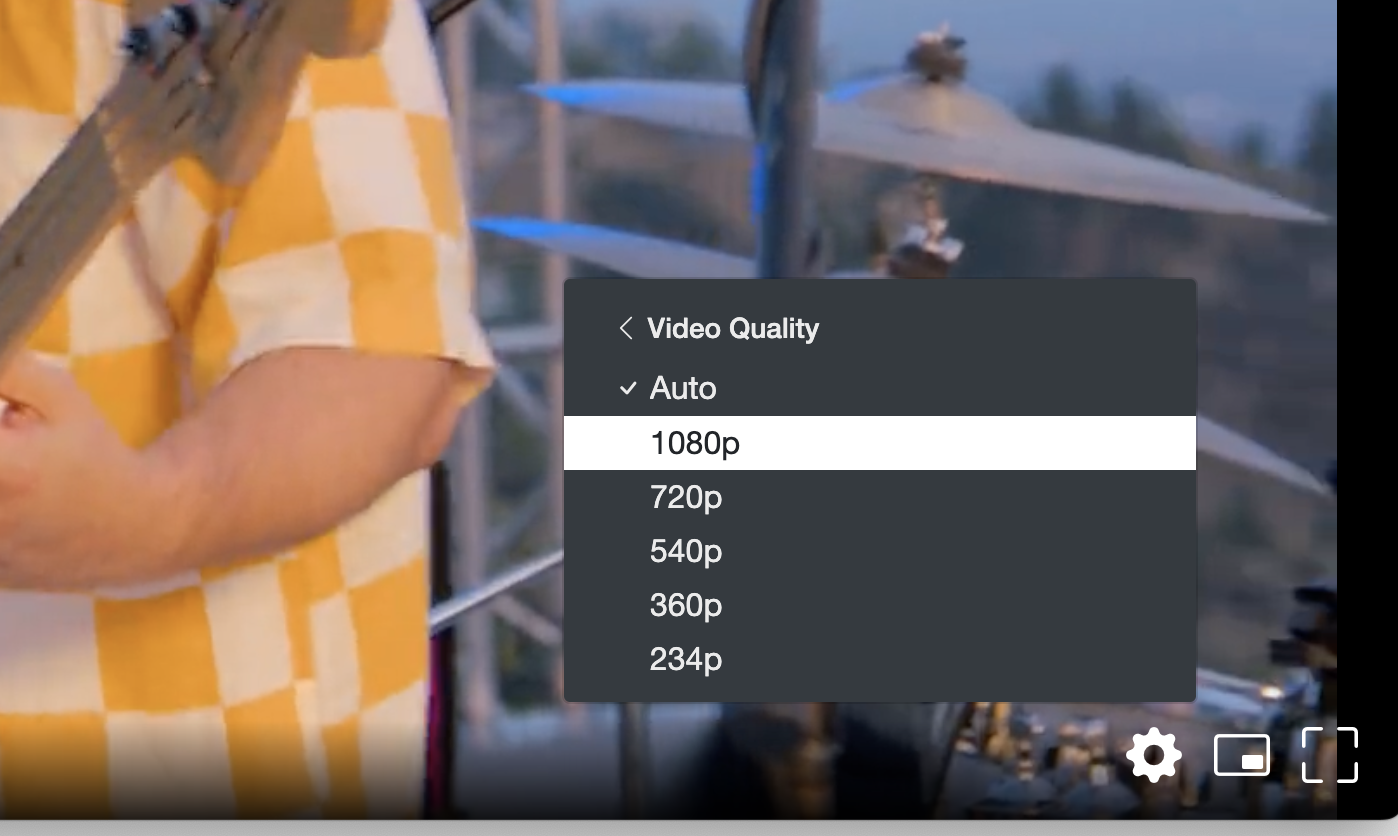
Enhanced Broadcasting in OBS enables multitrack video support creating multiple "renditions" or qualities that OBS sends to Dolby OptiView Real-time so that the end-viewer can choose which quality to watch or let the service choose automatically. This is called Adaptive Bitrate (ABR).
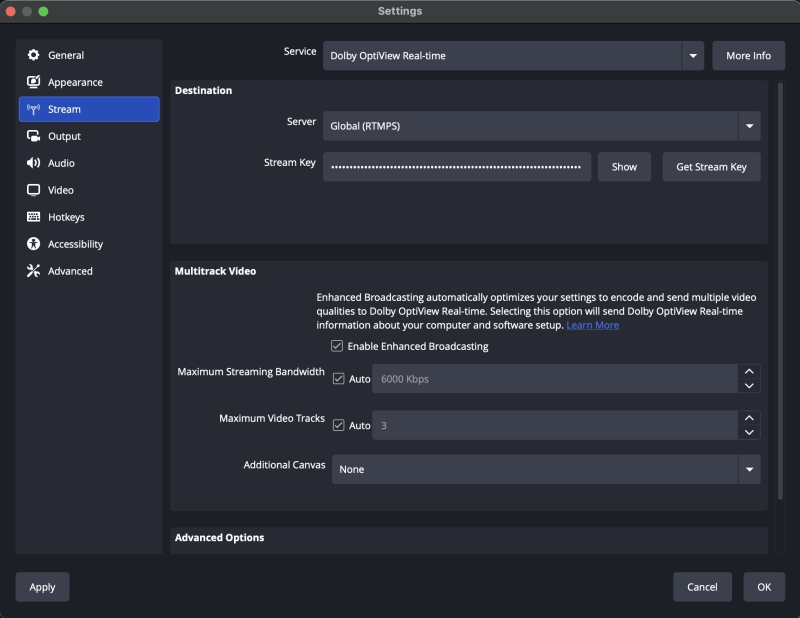
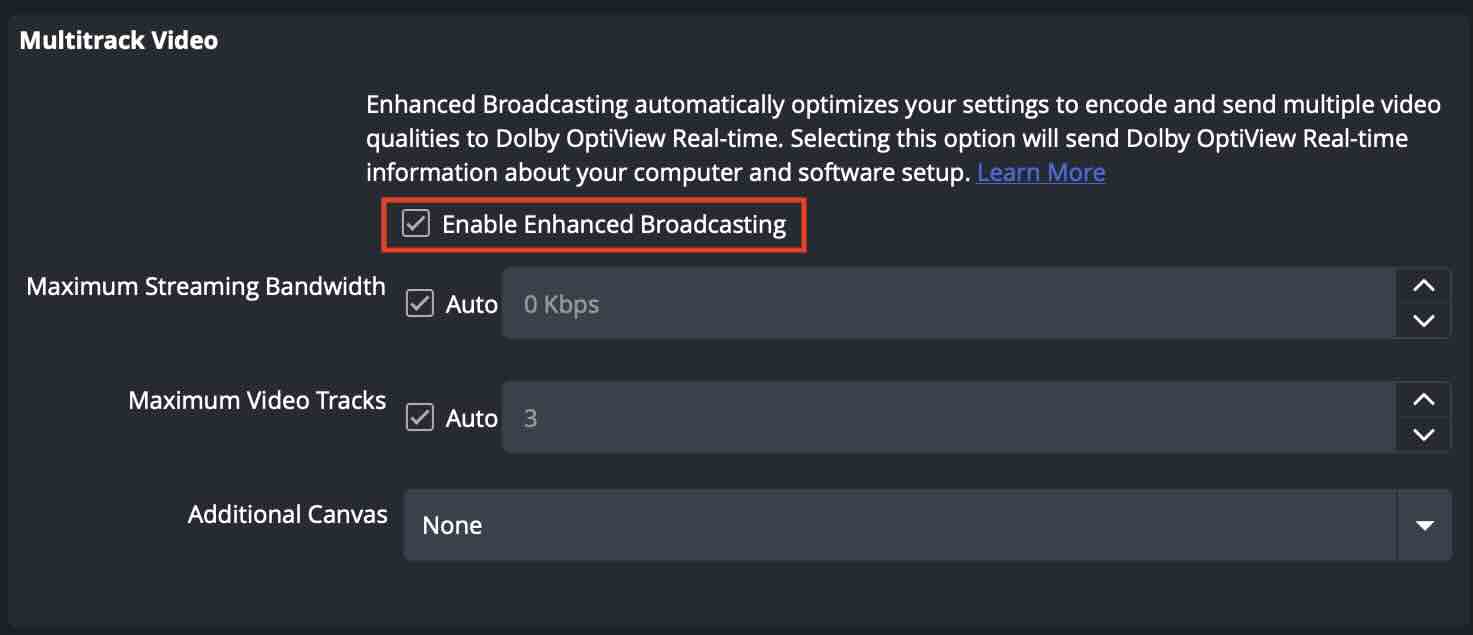
To use this feature, you will need OBS version 31.1 at a minimum. Then, after choosing Dolby OptiView Real-time (Dolby Millicast in OBS version older than 32.0.2) from the Stream > Service, enable Enhanced Broadcasting.
Automatic Stream Configuration
Understanding complicated video settings to achieve the highest video quality can be time consuming and frustrating and challenging if you are instructing remote streamers. By selecting "☑️ Auto", OBS sends information about your setup to Dolby OptiView Real-time and the service tells OBS how to configure itself. Automatic stream configuration removes the need for offline trial and error to find the correct settings. A server-side algorithm then returns the best possible configuration for broadcast software that optimizes the viewer experience given constraints in your setup.
Custom Layer Count
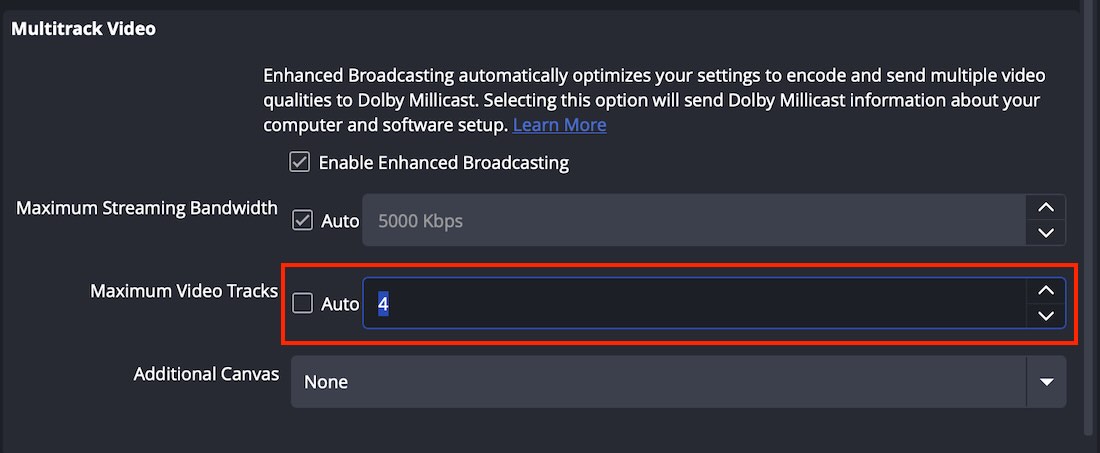
A user can uncheck the Auto box and choose the number of ABR tracks to send. Based on the resolution, bitrate, and number of layers requested, the streaming service will configure the ladder.
Server-side Stream Configuration
Most powerful of all, it is possible to define the renditions in the ABR ladder to match your needs for when you have strict delivery requirements. This is very helpful when you want to simplify the lives of your stream operators or if you work with distributed streamers who don't want to have to configure their streaming settings at all.
Let's say that you want to deliver low-bitrate 720p and 360p only at specific birates. You can work with Dolby to define that exact profile which will automatically configure any instance of OBS that uses your Dolby publishing token.
Here's how it works:
- Contact Dolby support or your account team to define and test your desired profile
- The profile will be created in the system and will be accessible to your account
- You can associate the enhanced broadcasting profile with a specific publishing token via the API (Dashboard control coming soon)
- Once you have assigned a profile to your token, you operator only needs to insert the token from the RTMP portion of the dashboard and need to check the Enable Enhanced Broadcasting in OBS.
- Once the OBS instance calls out to the Dolby service, it will receive instructions on how to configure for the profile you associated with the publishing token.
There are 3 different profiles you can choose from out of the box but please contact us so we can define one that meets your requirements.
The available server-side profiles are:
1080p profile
For the profile 1080p, the pre-configured layers are:
- 1080
- resolution:
1920x1080 - bitrate:
5000 kbps
- resolution:
- 720
- resolution:
1280x720 - bitrate:
2500 kbps
- resolution:
- 540
- resolution:
960x540 - bitrate:
1500 kbps
- resolution:
- 360
- resolution:
640x360 - bitrate:
900 kbps
- resolution:
- audio
- bitrate:
128kbps
- bitrate:
720p profile
Layers:
For the profile 720p, the pre-configured layers are:
- 720
- resolution:
1280x720 - bitrate:
2500 kbps
- resolution:
- 540
- resolution:
960x540 - bitrate:
1500 kbps
- resolution:
- 360
- resolution:
640x360 - bitrate:
900 kbps
- resolution:
- audio
- bitrate:
128kbps
- bitrate:
720p_low_bitrate profile
For the profile 720p_low_bitrate, the pre-configured layers are:
- 720
- resolution:
1280x720 - bitrate:
1000 kbps
- resolution:
- 360
- resolution:
640x360 - bitrate:
500 kbps
- resolution:
- audio
- bitrate:
128kbps
- bitrate:
Minimum System Requirements
While we work to increase support for other systems, these are the minimum requirements:
- GPU and Driver Version
- NVIDIA GeForce 900-series or newer with NVIDIA driver version
31.0.15.4500or newer - Apple M1 and newer GPUs
- Experimental: Intel GPUs
- NVIDIA GeForce 900-series or newer with NVIDIA driver version
- Operating System
- Windows 10 or Windows 11
- Broadcast Software
- OBS Studio version
31.1(or newer)
- OBS Studio version
- Network
- We recommend a minimum sustained upload bandwidth availability of 12 mbps and a contribution bitrate between 6000 and 2000 Kbps depending on the number of layers, content, and use-case
Note: If you are trying this feature and it is not working with your encoder, please contact Dolby Support or your account team so we can work to enable your hardware.