How-to Get Media Assets
With Stream Recordings you will want to be able to retrieve and operate on any media assets that are created. You can do this manually using the Streaming Dashboard or automate workflows using the Media Assets REST endpoints. There are also Media Webhooks available for building event-driven integrations.
Recordings in the Dashboard
You can find recordings by visiting the Streaming Dashboard.
Find Recordings by Token
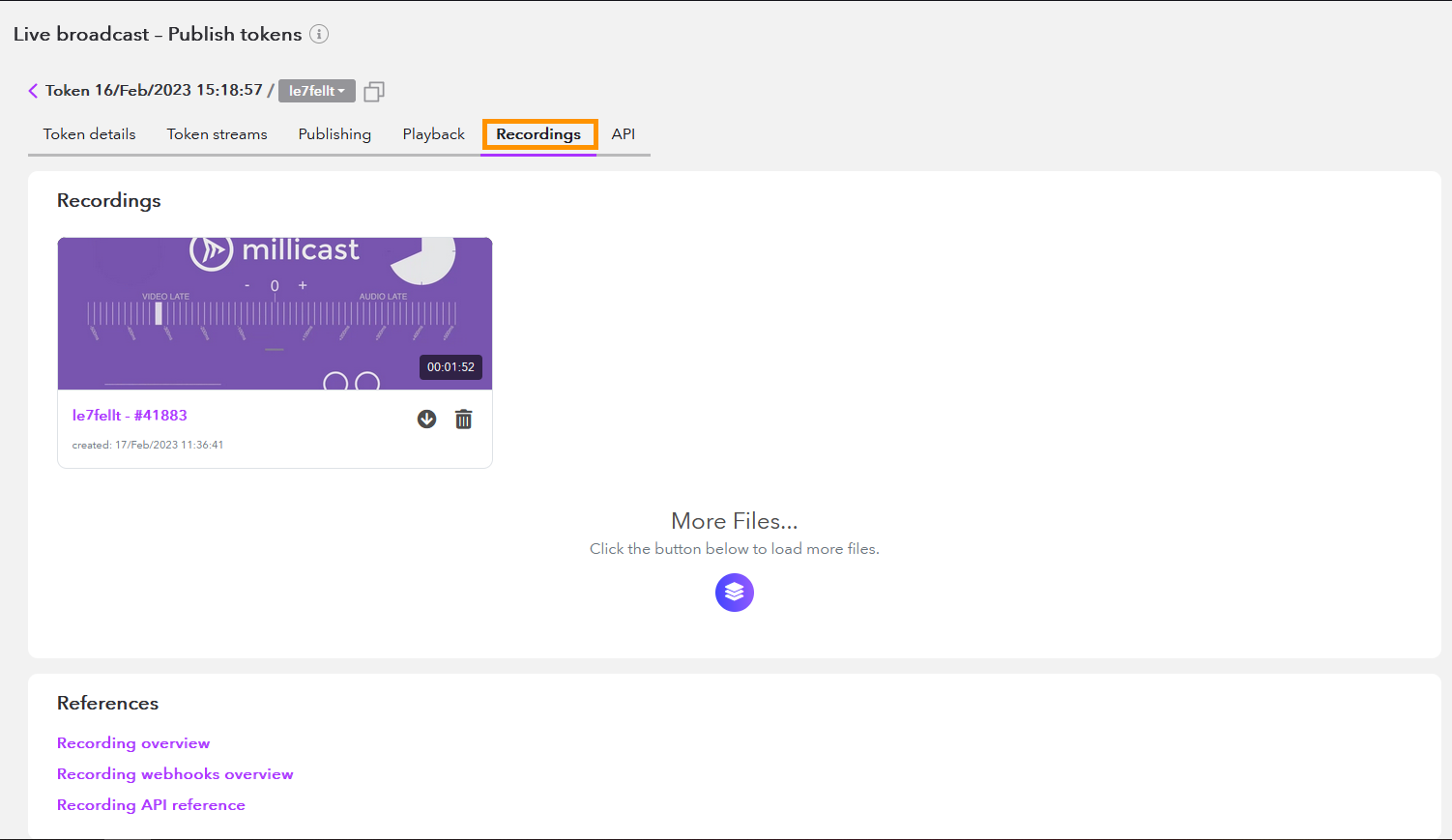
To find recordings for a specific token, open your Publish token from the Live Broadcast section and click the Settings button to open the management screen. Select the Recordings tab from the top of the panel. Each thumbnail is displayed with a reference to your recording. A newly created recording can take a few seconds to several minutes to render, depending on length. Once the recording has been processed, you can view it. You can click on the More Files button to see all the files recorded with the respective token.
Find All Account Recordings
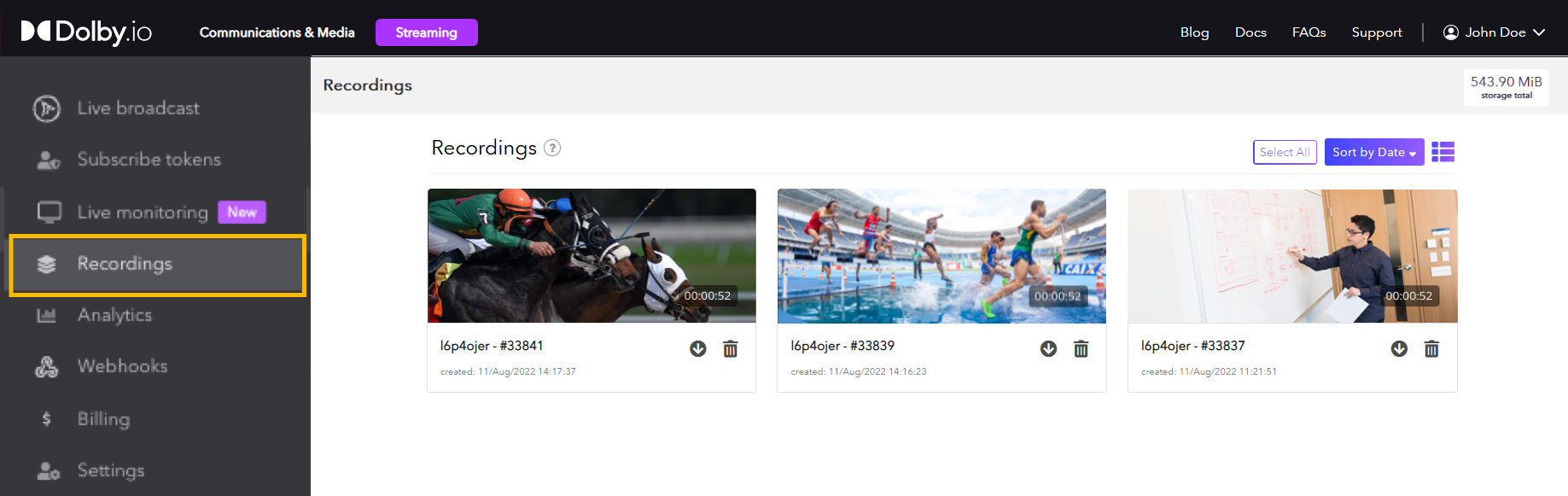
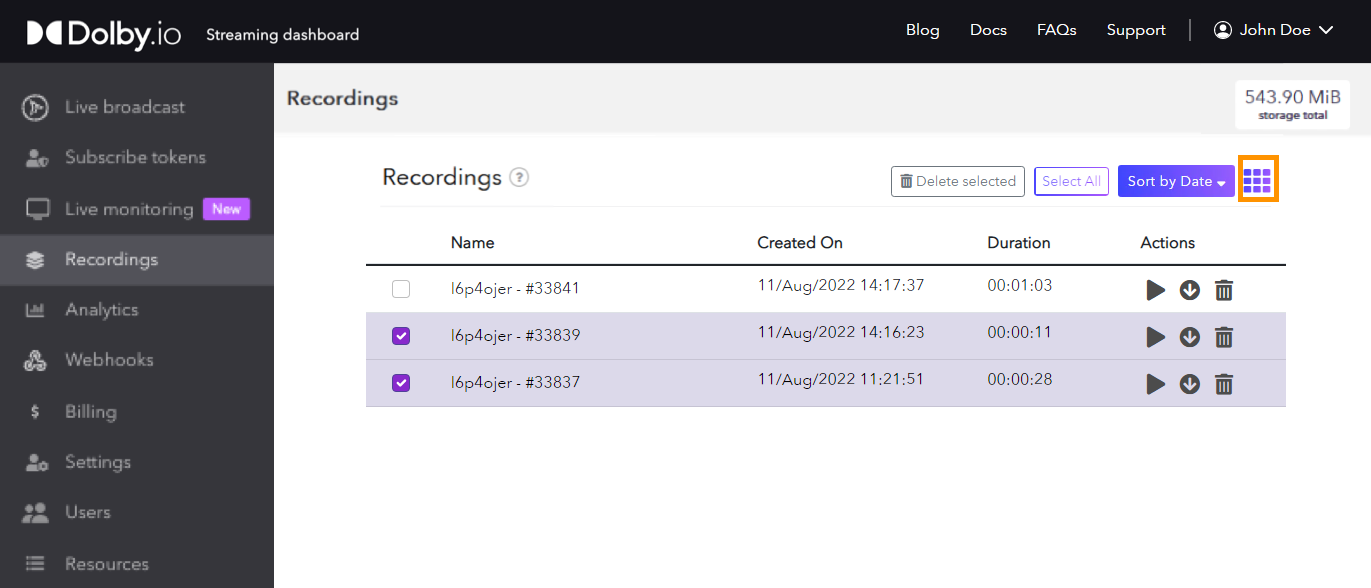
Alternatively, to find all your recordings, open the Recordings section of the dashboard. You can view your recordings either as a thumbnail grid or a basic list by clicking the List View button on the top right section menu. Additionally, you can see the current total storage used in the top right corner of the Recording page, or get your current billable storage in the Billing page.
Preview a Recording
To preview your recordings, click on the thumbnail image which will open the Preview Player and begin playing the video. The player also provides more information about your recording including length, quality, and dimensions. Click on the More Details button under the player to explore.
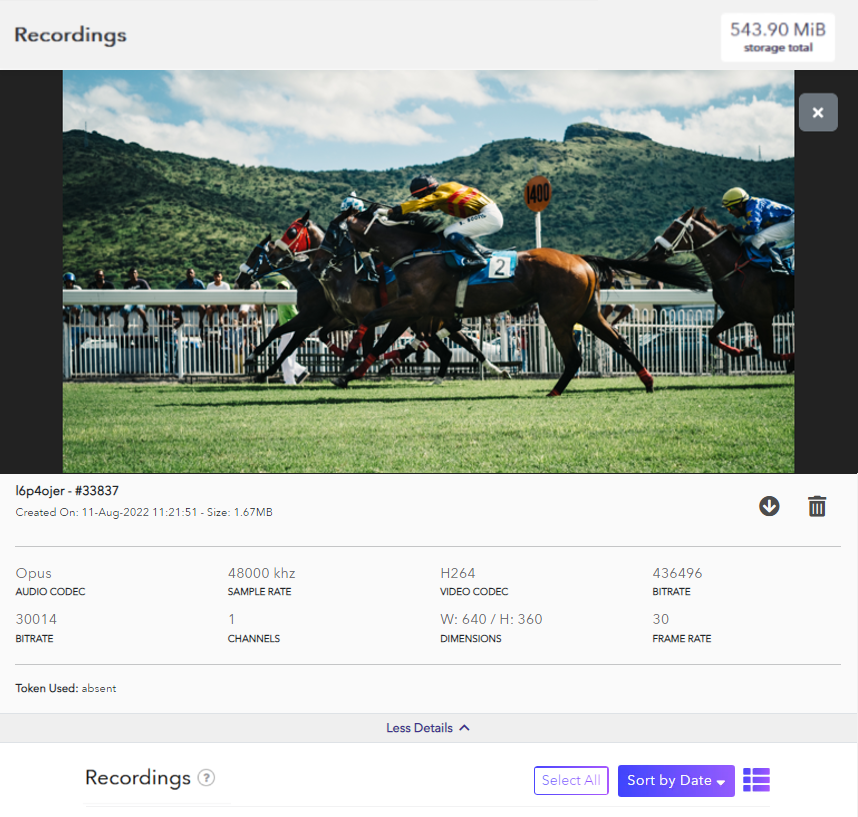
You can close the player using the close button located on the top right or you can scroll down to choose another video.
Download Recordings
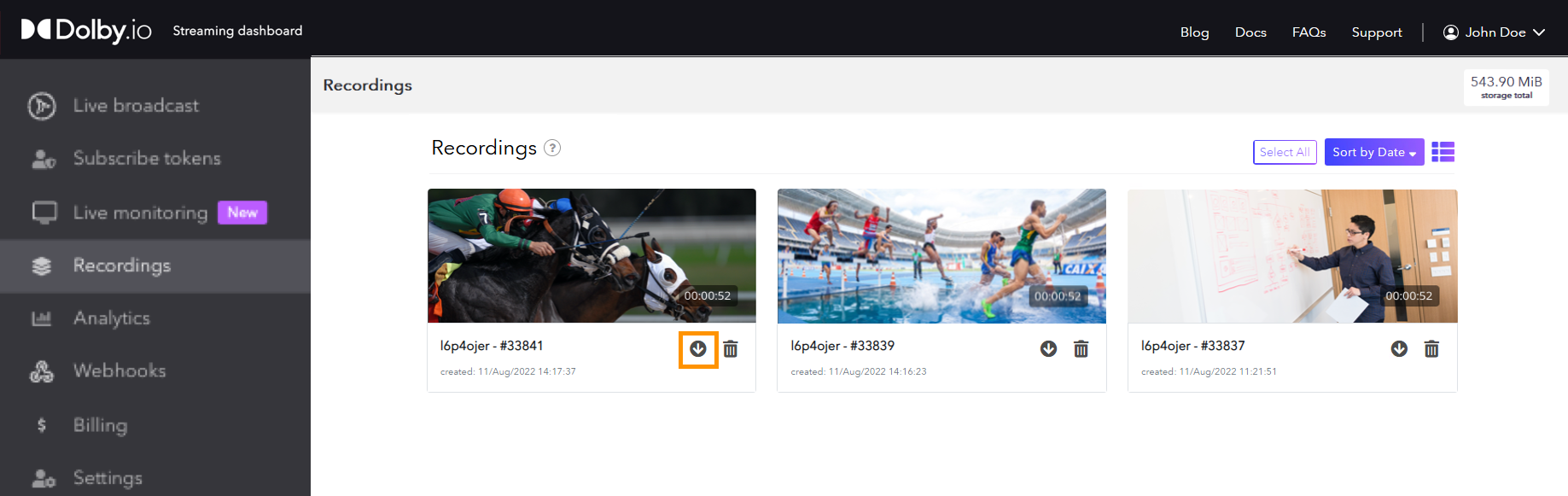
To download recordings, click the arrow icon visible on the thumbnail. You can also download your video using the icon menu under the preview player. Clicking the download icon immediately initiates a download.
The downloaded recording will use the Opus audio codec. Playback on various media players may not support Opus and audio may not be heard. You can use VLC for playback and converting sound to AAC.
Delete Recordings
The retention policy for recordings is determined by your business rules for removing and deleting the files.
Located next to the download button, the delete icon deletes the recording. To delete multiple videos you can select the checkboxes on the thumbnails and then click the Delete Selected button from the section menu on the top right.
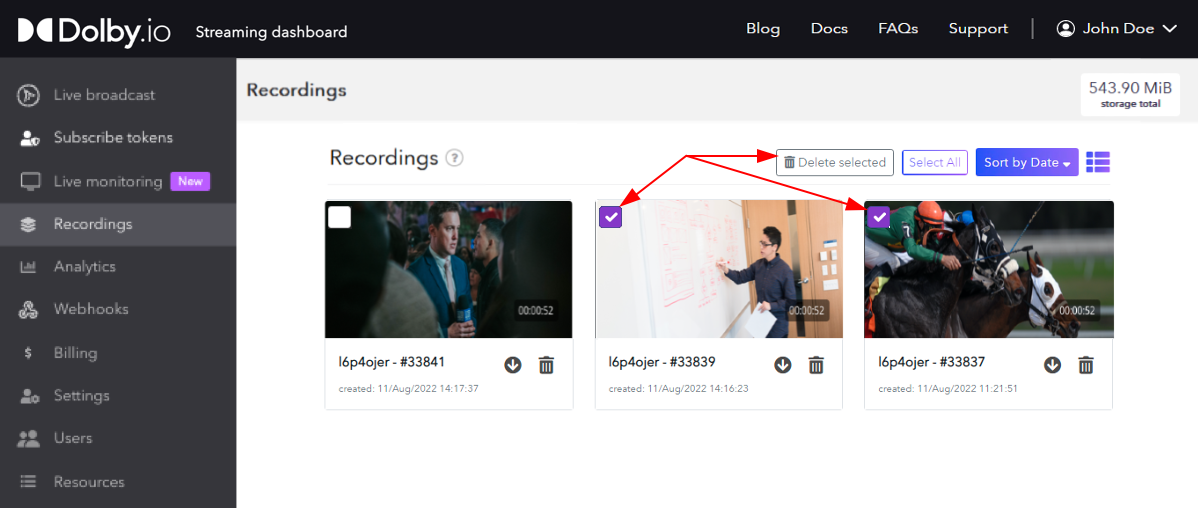
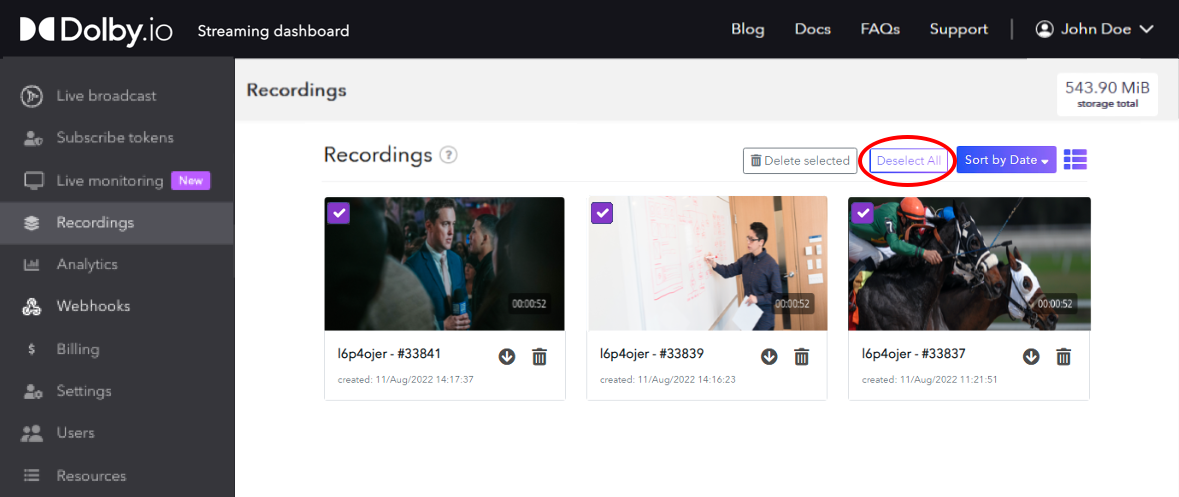
To delete all items at once, click the Select All button from the same top section menu. This will select every thumb on the screen. Then, click the Delete Selected button to delete them all.
If you delete a recording or clip it is immediate and permanent. We are unable to recover a recording once it has been deleted and removed from the cloud servers.
Finding Media by API
The Media Assets API can help you with automating workflows with recordings and clips.
Review the REST API Getting Started tutorial for details on retrieving your API Key for authenticating your API calls. The examples included here use the cURL command-line utility. Alternatively, there are Postman Collections and a REST Client for Node that may be helpful for your project.
Use the List Media Assets endpoint to query a list of media assets for your account. There are some parameters you can use to filter the results returned.
How-to Find All Recordings and/or Clips
Use the type parameter to retrieve assets that match the given type. If you omit the parameter, both recordings and clips will be returned together.
curl --request GET \
  --url https://api.millicast.com/api/v3/media/assets?type=clip \
  --header 'authorization: Bearer abc123'
You can use this parameter to find recording or timeline assets as well. See the List Media Assets reference specification for the full list.
How-to Find Recordings Still in Progress
Use the status parameter to retrieve assets that match a given status.
curl --request GET \
  --url https://api.millicast.com/api/v3/media/assets?status=processing \
  --header 'authorization: Bearer abc123'
You can use this parameter to find any errored assets as well. See the List Media Assets reference specification for the full list.
How-to Find Media By Name
Use the name parameter to find clips that were given a specific label or streamName to find just those that were captured for a specific broadcast.
curl --request GET \
  --url https://api.millicast.com/api/v3/media/assets?name=2024-10-01a \
  --header 'authorization: Bearer abc123'
Removing Media by API
Use the Delete Media Assets endpoint to remove either recordings or clips. You'll need to first find the mediaAssetId before you can delete specific assets. This is given as a query parameter so that you can delete more than one asset at a time.
curl --request DELETE \
  --url https://api.millicast.com/api/v3/media/assets?id=1&id=2 \
  --header 'Authorization: Bearer abc123'
How-to Remove All Media
To remove everything from your account you can use the Delete All Media Assets REST endpoint. This operation works on one type at a time so will be called to remove recording, clip, and timeline independently.
If you delete a recording or clip it is immediate and permanent. We are unable to recover a recording once it has been deleted and removed from the cloud servers.
Downloading Media by API
Using the Media Assets API you can identify the cloud storage location where recordings and clips are stored.
How-to Retrieve a Recording
Recordings will typically be stored on Dolby's servers and made available for retrieval. You'll need to know the mediaAssetId of the item you want to download.
Example GET Response
This is an example of a JSON response from the /media/asset/{mediaAssetId} endpoint.
{
  "status": "success",
  "data": {
    "id": "string",
    "type": "recording",
    "feed": {
      "tokenId": 0,
      "streamName": "string",
      "sourceId": "string",
      "simulcastId": "string",
      "priority": 0
    },
    "startTime": "2024-10-01",
    "stopTime": "2024-10-01",
    "name": "string",
    "storage": {
      "type": "gcs",
      "path": "string"
    },
    "status": "processing",
    "error": "string",
    "created": "2024-10-01",
    "expiration": "2024-10-01",
    "removed": "2024-10-01",
    "metadata": {
      "format": "string",
      "sizes": {
        "additionalProp": 0
      },
      "duration": 0,
      "tracks": [
        {
          "type": "string",
          "codec": "string",
          "bitrate": 0,
          "width": 0,
          "height": 0,
          "framerate": 0,
          "channels": 0,
          "samplerate": 0
        }
      ],
      "thumbnails": ["string"]
    },
    "download": {
      "downloadUrl": "string",
      "downloadExpiresOn": "2024-10-01T18:47:26.836Z",
      "url": "string"
    }
  }
}
The downloadUrl gives you the storage location where a file is available to download using whichever software or libraries are most appropriate for your application needs.
After your downloadUrl expires call the /media/asset/{mediaAssetId} endpoint to retrieve a new one.
Managing Media Security
If you want to construct download URLs without repeated API calls, or want fine-grain control over access to media assets, use the base url field and media distributions.
Media Distributions
A media distribution is an object defining security settings for a subset of media assets on your account. You may have multiple media distributions with different security settings. Create and manage media distributions using the Media Distributions API.
Each media asset can be associated with one media distribution in one of the following ways:
- Specify the
mediaDistributionIdwhen creating a clip using the Create Media Asset endpoint. - Update the
mediaDistributionIdon an existing media asset using the Update Media Asset endpoint. - Set a default media distribution for your account using the Create Media Distribution or Update Media Distribution endpoint. Any new media assets created on your account will be associated with the default media distribution.
If a media asset is not associated with a media distribution it cannot be viewed using the base url.
Unsecured Playback
An unsecured media distribution is one with no security keys. Create an unsecured media distribution using the following curl command.
curl --request POST \
  --url https://api.millicast.com/api/v3/media/distributions \
  --header 'Authorization: Bearer abc123' \
  --data '
{
  "name": "myUnsecuredDistribution"
}
'
To view a media asset associated with this distribution, simply use the url field from the Read Media Asset response.
Secured Playback
If you want to secure your media assets, create a secured media distribution with your secret key.
curl --request POST \
  --url https://api.millicast.com/api/v3/media/distributions \
  --header 'Authorization: Bearer abc123' \
  --data '
{
  "name": "mySecuredDistribution",
  "security": {
    "keys": [
      {
        "name": "mySecurityKey",
        "key": "abcdefghijklmnopqrstuvwxyz1234567890"
      }
    ]
  }
}
'
Retrieve the id of your security key from the response. Keep a record of your secret key since you will not be able to retrieve it again via the OptiView APIs.
Any media assets associated with a media distribution with a security key cannot be viewed without a valid JWT.
Create a JWT with a payload including the id of your media distribution security key, an expiry time and optionally a mediaAssetId. Use your secret key to sign the JWT.
Below is an example JWT payload.
{
  "mediaKeyId": "qwertyui-opas-dfgh-jklz-xcvbnm123456",
  "mediaAssetId": "lqrj4csjmqspx1d8l9zvvcg1wlcc7raz"
  "exp": 1770330326
}
You may omit the mediaAssetId if you wish to create a token that is valid for all media assets associated with this media distribution.
Retrieve the base download url from the Read Media Asset response.
Append the JWT as a token query parameter. The resulting url will look like
https://cdn.optiview.dolby.com/vod/{organisationId}/{mediaAssetId}/{filename}.{fileExtension}?token={jwt}
You may add a second security key to a media distribution for the purpose of key rotation. Either key can be used to sign your JWTs.
Predictable Paths
Generally the url to download a media asset looks like
https://cdn.optiview.dolby.com/vod/{organisationId}/{mediaAssetId}/{filename}.{fileExtension}
When creating or uploading a media asset you may provide a customPath that will replace the mediaAssetId in the download path.
The resulting url will look like
https://cdn.optiview.dolby.com/vod/{organisationId}/{customPath}/{filename}.{fileExtension}
Using custom paths enables prediction of the download url path without reading the mediaAssetId from the API response.